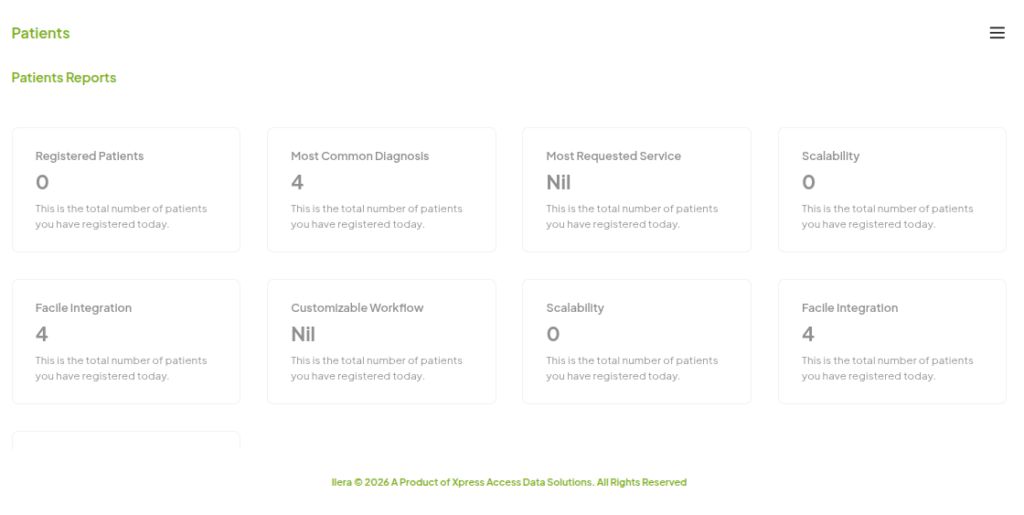
The screenshot below shows what you’ll see in the patients dashboard. This documentation walks you through what each element means and how to navigate the patients dashboard effectively.
For details on specific features, use the navigation bar on the left, which is organized by topic.
This is the default screen you see once you navigate to the patient dashboard — the patient records view. This is not the only screen, however, as the patient dashboard also covers patient reports data, with a button to help you switch between the two. You’ll notice the hamburger button at the top right of this screen.
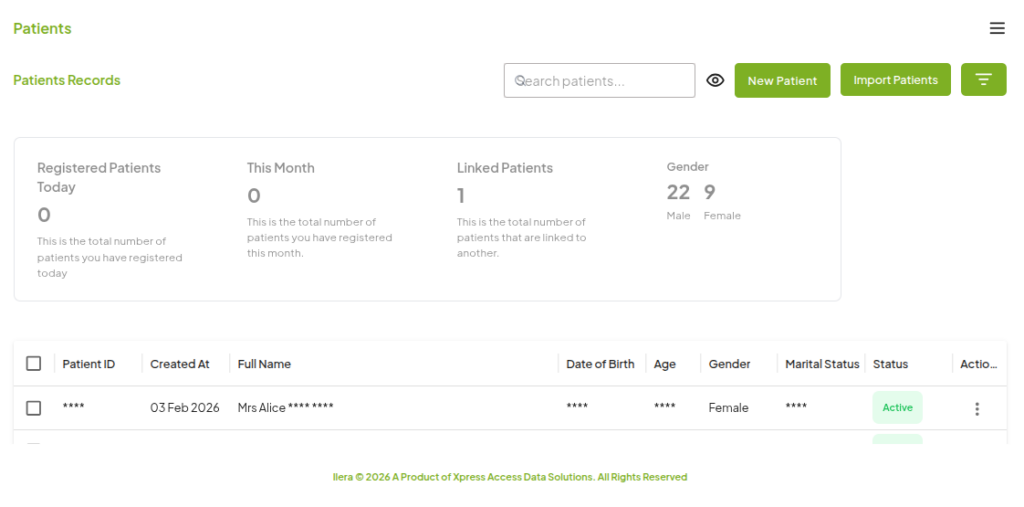
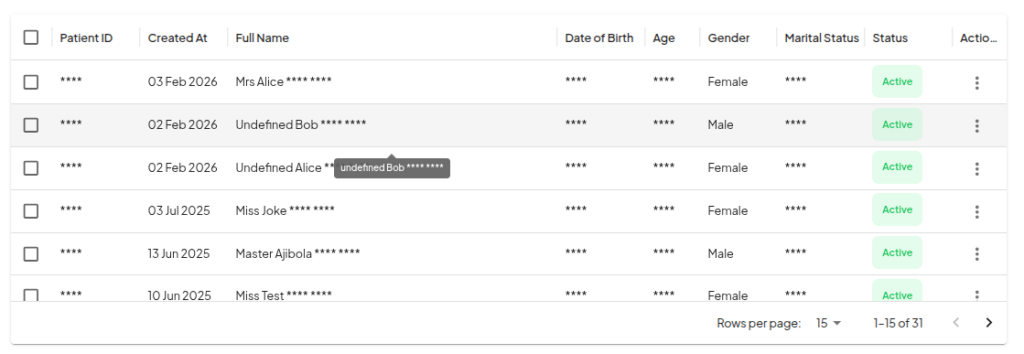
The screen above displays the patient registration summary, with buttons to create a new patient and a new appointment. Below that, you have a table listing the patients registered to your clinic, with options to edit, delete, or modify details in their appointments or patient data. For more details, navigate to the Patients Records Overview page.
This is the hamburger menu that helps you switch between screens in the patient dashboard. It’s located at the top right corner of the dashboard, and once clicked, switches the screen to the patient reports view.

This is the patient reports view. It displays a summary of patient activities. For more details on how to make the most of this feature, click here.