This is the patient reports view. It displays a summary of patient activities. In this documentation we would break down each card/report.
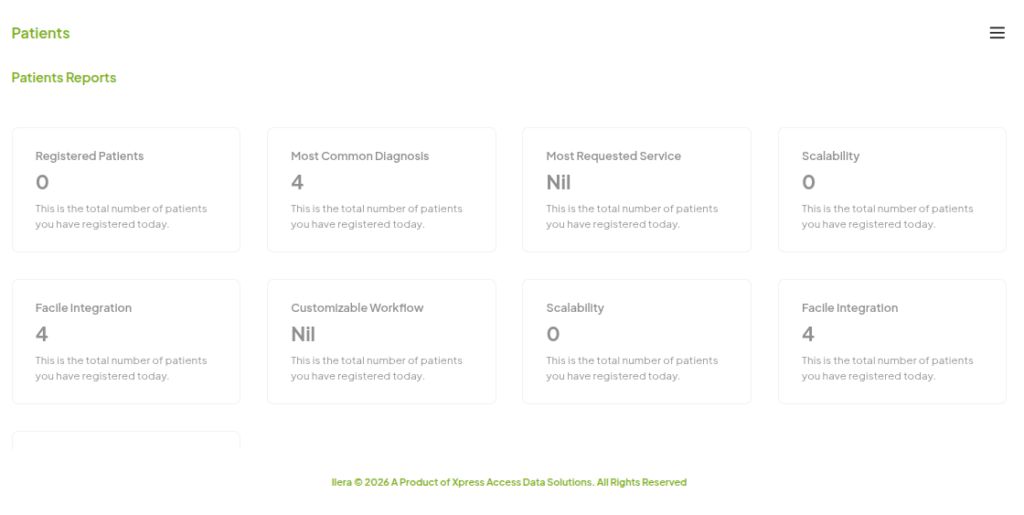
This is the hamburger menu that helps you switch between screens in the patient dashboard. It’s located at the top right corner of the dashboard, and once clicked, it switches the screen back to the patient records view.

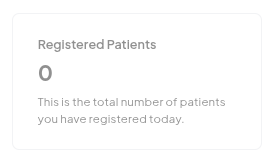
Appointment: This card displays the total number of appointments for the day (on the left) and the month (on the right). Click here for more details.
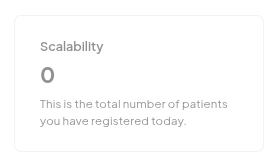
Inventory: This card displays the most dispensed item from the inventory for the day (on the left), and the total number of that item dispensed (on the right). Click here for more details.
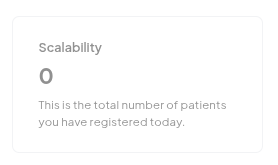
Inventory: This card displays the most dispensed item from the inventory for the day (on the left), and the total number of that item dispensed (on the right). Click here for more details.
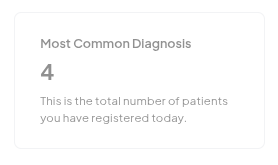
Patients: This card displays the total number of patients that have visited for the day (on the left) and the month (on the right). Click here for more details.
Test: This card displays the total number of tests booked for the day (on the left), and the most occurring test type on the right. Click here for more details.
Inventory: This card displays the most dispensed item from the inventory for the day (on the left), and the total number of that item dispensed (on the right). Click here for more details.
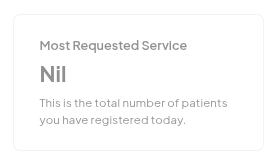
Patients: This card displays the total number of patients that have visited for the day (on the left) and the month (on the right). Click here for more details.
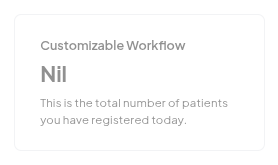
Test: This card displays the total number of tests booked for the day (on the left), and the most occurring test type on the right. Click here for more details.
Test: This card displays the total number of tests booked for the day (on the left), and the most occurring test type on the right. Click here for more details.
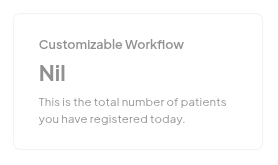
Inventory: This card displays the most dispensed item from the inventory for the day (on the left), and the total number of that item dispensed (on the right). Click here for more details.


